7 Best Android Phones for Seniors (October 2026)
The best Android phones for seniors include the Google Pixel 10a for frequent outdoor use, the Moto G Stylus 2024 for handwritten reminders, and the Moto G Power 2025 for regular video callers.
On this page (7 sections)
- Which is the best Android phone for seniors?
- How do you choose a senior's Android phone for daily comfort?
- What should you check before buying an Android phone for a parent?
- How should you set up a new phone for a senior?
- How do you keep the phone useful after setup?
- Which common buying mistakes should you avoid?
- Which Android phone should you choose for a senior?
The Google Pixel 10a is the best Android phone for most seniors because its bright screen and spam call screening address 2 common needs. Choose the Moto G Stylus 2024 for handwritten reminders or the Galaxy A17 5G if keeping a familiar phone for years matters most.
Start with the person's habits, not their age. Someone who reads novels, joins video calls and manages appointments needs a different setup from someone who mainly calls family.
If you're helping a parent choose, use our Android phone checklist for parents to agree on priorities before comparing extras.
Our picks at a glance
-
1

-
2
-
3

Which is the best Android phone for seniors?
The Pixel 10a is the strongest general choice, but comfort and familiar controls can make another pick a better match. NeighborlyNod compared screen features, charging options, call tools, storage and stated software support for everyday use.
Use the comparison table to narrow the choices, then read the trade-offs below. A phone should fit the user's routine without requiring them to learn features they don't want.
| Product | Best for | Display | Battery | Durability | Our score |
|---|---|---|---|---|---|
| Google Pixel 10a | frequent outdoor use | OLED, 1080 x 2424 pixels | 30+ hours claimed | IP68 water and dust protection | 8.6 |
| Moto G Stylus 2024 | handwritten reminders | 6.7-inch pOLED | 5000mAh | 8.4 | |
| Moto G Power 2025 | regular video callers | 6.8-inch, up to 120Hz | 5000mAh | 8.3 | |
| Galaxy A17 5G | keeping phones longer | 6.7-inch Super AMOLED | IP54 splash and dust resistance | 8.0 | |
| Moto g 2026 | busy days out | 6.7-inch HD+, up to 120Hz | 5200mAh typical capacity | 7.8 | |
| Moto G 2025 | saving family videos | 6.7-inch LCD, up to 120Hz | 5000mAh | 7.7 | |
| Moto G Play 2024 | light phone users | 6.5-inch HD+, up to 90Hz | 5000mAh | 6.9 |
Google Pixel 10a
- Actua display with 3,000-nit peak brightness
- 30+ hours of battery life claimed
- IP68 water and dust protection
- Spam call screening
A bright screen and spam call screening make this the strongest starting point for everyday use. Choose it for reading outdoors and managing unwanted calls.
Pros
- Bright display for outdoor reading
- Spam call screening
- IP68 water and dust protection
Cons
- AI tools may add little for someone focused on calls and texts
Choose the Pixel 10a for someone who reads messages outdoors and wants help managing unwanted calls. Its Actua OLED display reaches a stated 3,000-nit peak brightness, useful for visibility in sunlight, although peak brightness is not a constant setting.
Google claims more than 30 hours from a full charge. Actual runtime depends on calls, screen use, signal strength and settings, so plan a regular charging time rather than relying on that figure.
Spam call screening is the more practical starting feature for many users; Gemini can wait until they have a reason to use it. Explain how screened and missed calls appear so an unfamiliar screen doesn't cause confusion.
The phone has Gorilla Glass 7i, IP68 water and dust protection, wireless charging and fingerprint or facial recognition. Those features offer useful choices for daily use, but a comfortable case and a memorable backup PIN still matter.
Skip it if the person mainly wants a pen for notes or would rather stay with familiar Samsung controls. Extra AI tools should support their routine, not become the reason to replace a phone they already understand.
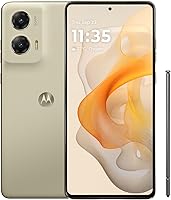
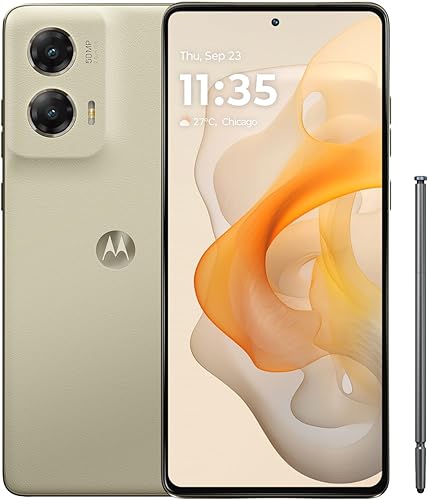
Moto G Stylus 2024
- Built-in stylus
- 6.7-inch pOLED display
- 30W TurboPower charging
- 5000mAh battery
The built-in pen suits someone who prefers writing short notes to typing them. Its large screen also gives photos, messages and video calls room.
Pros
- Built-in pen for notes and drawing
- Large pOLED display
- 50MP camera with optical image stabilization
Cons
- Small stylus may be awkward for someone with limited finger control
Choose the Moto G Stylus 2024 for someone who likes writing shopping lists, names or quick reminders by hand. Its built-in stylus also supports drawing and photo edits without carrying a separate pen accessory.
The 6.7-inch pOLED display provides room for writing and reading. Before buying, have the user try removing and replacing a similarly sized stylus, since a small pen can be awkward with stiff fingers or an unsteady grip.
The camera includes optical image stabilization, which helps reduce blur from camera movement. It doesn't freeze a moving grandchild, so good light and a steady hold still help with family pictures.
This model supports 30W TurboPower charging, and Motorola claims up to 30 hours of battery life for median users under its stated conditions. Its 128GB storage also supports RAM Boost, which borrows file space as virtual memory.
Skip it if handwriting on a screen feels less comfortable than typing or voice input. The pen earns its place only when it makes a regular task easier.
Moto G Power 2025
- 6.8-inch display
- 5000mAh battery
- Wireless charging
- Stereo speakers
The roomy screen and stereo speakers suit video chats and watching shows. Wireless charging offers another way to build a daily charging routine.
Pros
- Roomy screen for video calls
- Stereo speakers
- Wireless charging
Cons
- Large body may be tiring to hold during long calls
Choose the Moto G Power 2025 for someone who spends time on video calls, watches shows or reads with enlarged text. Its 6.8-inch screen gives those tasks more room, while stereo speakers suit shared listening.
Wireless charging is useful if placing a phone on a pad feels easier than connecting a cable. Check that the person can position it correctly and recognize the charging indicator, especially with a case fitted.
Motorola says the battery can last over a day under its mixed-use conditions. The phone also supports wired TurboPower charging, so the user can choose the method that fits their routine.
The camera includes optical image stabilization, and the body has a vegan leather finish and Gorilla Glass 5. Those details don't remove the need to judge grip with the intended case attached.
Skip it if the user struggles to reach across a large screen or gets tired holding a phone during calls. A stand helps at a table, but it won't make the device easier to carry or answer while walking.
Galaxy A17 5G

- 6.7-inch Super AMOLED display
- 6 OS upgrades and 6 years of security updates from global manufacture
- Expandable storage up to 2TB
- IP54 splash and dust resistance
Samsung's stated update commitment suits someone who wants to keep a familiar phone for years. Expandable storage leaves room for a growing photo collection.
Pros
- Long stated software and security support
- Large Super AMOLED display
- Expandable storage up to 2TB
Cons
- 25W charger sold separately
- Update period starts at global manufacture
Choose the Galaxy A17 5G for someone who wants to keep the same phone and controls for several years. Samsung promises 6 OS upgrades and 6 years of security updates, counted from global manufacture rather than the day you buy it.
Its 6.7-inch Super AMOLED display suits enlarged messages, photos and video chats. Expandable storage up to 2TB gives a growing photo collection room, with a microSD card bought separately.
The phone has IP54 splash and dust resistance, which does not make it suitable for pool or beach use. Its 25W charger is also sold separately, so include a suitable charging setup in the buying decision.
Circle to Search and Samsung Wallet are optional tools to introduce when useful. Start with calls, messages, photos and essential apps instead of filling the home screen with unfamiliar shortcuts.
Skip it if the size feels awkward or the user expects the entire update period to begin at checkout. Our Galaxy A17 5G overview gives more help deciding whether its strengths match your needs.
Moto g 2026

- 6.7-inch display with up to 120Hz refresh rate
- 5200mAh typical battery capacity
- Stereo speakers
- Unlocked for major US carriers
A large battery and stereo speakers suit errands, calls and entertainment away from home. Compare its HD+ text clarity with sharper screens before choosing it for frequent reading.
Pros
- 5200mAh typical battery capacity
- Large display
- Stereo speakers
Cons
- Lower screen resolution than Pixel 10a and Moto G Stylus 2024
Choose the Moto g 2026 for someone who wants a large screen and substantial battery capacity for days away from home. Its 5200mAh typical capacity is the largest stated capacity in this group, though capacity alone doesn't establish the longest runtime.
The 6.7-inch display supports refresh rates up to 120Hz, and stereo speakers provide sound for calls and entertainment. A higher refresh rate makes motion smoother; it doesn't make letters larger or sharper.
Its 1604 x 720 resolution deserves attention if reading is the main task. Compare a message and a web page at the user's preferred text size before deciding that screen size is enough.
The phone has 4GB of physical RAM, with RAM Boost using internal storage to add virtual memory. That extra memory is not the same as additional physical RAM.
Skip it for someone who keeps many demanding apps open or strongly prefers crisp, fine text. Its broad US carrier compatibility is useful, but the exact model still needs carrier approval before activation.
Moto G 2025

- 6.7-inch display with up to 120Hz refresh rate
- 5000mAh battery
- Expandable storage up to 1TB
- Water-repellent design
Expandable storage suits someone who keeps family videos and downloaded entertainment. Its large LCD and stereo speakers cover everyday calls and viewing.
Pros
- MicroSD support up to 1TB
- 128GB built-in storage
- Stereo speakers
Cons
- HD+ resolution is less suited to fine text
- Water-repellent design is not waterproof
Choose the Moto G 2025 for someone who saves family videos, downloads entertainment and wants to add storage later. It combines 128GB of internal storage with microSD support up to 1TB.
A memory card can hold suitable photos, videos and other files, but it doesn't replace internal space for every app. Keep some internal storage free so downloads and app updates don't become a recurring chore.
Its large LCD and stereo speakers suit everyday viewing. The HD+ resolution is a reason to compare text clarity if the user reads articles or small labels often.
Motorola describes the design as water repellent, with protection intended for spills, splashes and light rain. It is not waterproof, and that protection may diminish over time.
Skip it if the phone will serve mainly as an e-reader or if long-term software support is the deciding factor. The Galaxy A17 has an explicit support commitment in this comparison; our Motorola phone guide helps separate the other Motorola choices.
Moto G Play 2024
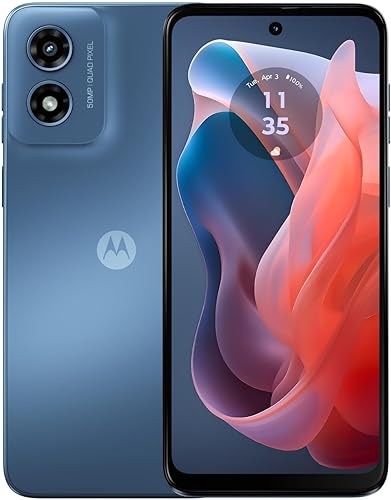
- 6.5-inch HD+ display
- 5000mAh battery
- Stereo speakers
- Expandable storage up to 1TB
Consider this 4G phone for calls, messages and a small set of apps after confirming carrier approval. Its limited internal storage needs more attention as apps and files grow.
Pros
- Stereo speakers
- Expandable storage
- 5000mAh battery
Cons
- 4G rather than 5G
- 64GB built-in storage
Choose the Moto G Play 2024 for a light user who mainly calls, sends messages and uses a small set of apps. Its 4G connection can cover those needs where the carrier approves the model and provides suitable service.
The 6.5-inch HD+ screen is the smallest stated screen size among these picks. Don't assume that makes it comfortable in every hand, since a case and button placement also affect daily handling.
Its 64GB internal storage needs more care than the larger built-in capacities here. MicroSD support up to 1TB helps with suitable media files, but app space still needs attention.
Stereo speakers and a 5000mAh battery cover useful basics without making this a match for every user. Motorola's splash protection also does not allow submersion.
Skip it if the person downloads many apps, saves large amounts of content internally or specifically wants 5G. Confirm the remaining software support before choosing it for banking or other sensitive tasks over several years.
How do you choose a senior's Android phone for daily comfort?
Choose by readability, grip and clear calls before camera extras or display speed. Ask the user to complete familiar tasks rather than judging the phone from a photo.
What makes an Android phone easier for seniors to read?
Larger text and a comfortable layout matter as much as screen size. Increase font size and display size separately, since larger letters alone may leave buttons and other controls too small.
Open a message, the contacts screen and a web page at those settings. Check whether long names or labels get cut off and whether the user can still find the action they need.
Compare visibility near a window as well as indoors. Peak brightness figures describe a display's upper capability, not how comfortable every app will look in every setting.
Can the person hold it and reach the controls?
A usable phone lets the person answer calls and return home without repeatedly shifting their grip. Try those actions seated and standing, with the case they expect to use.
For limited reach, Android may offer one-handed or accessibility controls, depending on the model and software. Explore those options together rather than assuming the user needs a smaller screen.
A stand can help with long video calls or reading at a table. It also frees both hands for adjusting volume or typing a reply.
Will calls be clear with their usual audio setup?
Call comfort depends on the earpiece, speakerphone, surroundings and any hearing device the person uses. Stereo speakers for music don't establish how well they will hear a private call.
Check call volume, ringtone volume and notification volume separately. If the person uses hearing aids or another audio accessory, confirm compatibility with the exact combination before buying.
What should you check before buying an Android phone for a parent?
Confirm carrier approval, support life and the full setup needs before ordering. A familiar phone that works reliably on the person's network is more useful than an extra feature they rarely use.
Ask the carrier to check the exact model, preferably using its IMEI when available. Also confirm voice calling, voicemail and the activation steps for the existing plan.
An unlocked phone can accept service from another carrier, but that doesn't guarantee every network feature. Our guide to what unlocked means explains that distinction.
Check whether activation needs a physical SIM or an eSIM, and who will help if the transfer stops. Our US unlocked-phone buying guide brings the compatibility checks together.
For someone keeping a phone for years, look at the remaining support period rather than the model name alone. Security updates matter for a device used for email, payments and account recovery.
Finally, account for a case, any needed charger and a memory card if storage expansion is part of the plan. Fast charging requires suitable equipment; a cable in the box does not establish that a wall charger is included.
How should you set up a new phone for a senior?
Set up essential tasks first, with the person making the choices and practicing each step. Keep the old phone available until contacts, photos, calls and important accounts work on the replacement.
Move accounts and contacts without losing access
Check the Google account password and recovery details before starting the transfer. If a family member helps, keep the phone in the user's own account unless they deliberately choose another arrangement.
Transfer contacts and check for duplicates or missing numbers. Make an outgoing call, receive one, send a message and confirm voicemail before treating the move as finished.
Banking apps, authentication apps and other secure services may need separate sign-in steps. Keep access to the old device until those accounts work and any needed recovery codes are stored safely.
Make the home screen easy to remember
Put the phone, messages, camera and the person's main communication app where they can find them. Remove unwanted shortcuts and widgets from the home screen without deleting anything they still need.
Choose text size, brightness and navigation controls together. If the current software offers a choice between gestures and on-screen buttons, let the user try both.
Avoid changing the layout again after they learn it unless they ask. A stable arrangement helps them build confidence through repetition.
Practice charging, security and missed calls
Choose a screen lock the person can use consistently, and make sure they know the backup PIN even if they prefer fingerprint or face access. Store recovery information somewhere safe away from the phone.
Save key contacts and review any available emergency information and emergency-contact settings. Demonstrate how to find missed calls and listen to voicemail, including calls handled by screening tools.
Have the user connect the charger or position the phone on a charging pad themselves. Our first-time unlocked-phone setup guide can support the rest of the process.
How do you keep the phone useful after setup?
Keep charging, storage and updates predictable so small maintenance tasks don't interrupt calls or messages. Agree on a routine the user can manage independently.
Choose a regular charging place with an easy-to-reach outlet and a cable that doesn't cross a walkway. Check the charging symbol rather than assuming a connected cable or charging pad is supplying power.
Keep the phone away from high heat, and replace damaged charging cables. Water resistance is backup protection, so follow the model's care instructions and avoid charging a wet connector.
Review storage when the phone warns that space is low. Move suitable media files or remove unwanted downloads, but don't delete unfamiliar folders or apps simply to clear room.
A memory card is extra storage, not a separate backup. Decide whether important photos will also be copied to another device or an account the user can access.
Agree on help for software updates and account recovery before either becomes urgent. Remote access or location sharing should be a clear choice the user understands.
Which common buying mistakes should you avoid?
Avoid choosing by one impressive number or by what a helper prefers. Match the phone to the person's actual tasks and ability to manage it.
- Equating age with inexperience: Ask which apps and features the person already uses before simplifying their phone.
- Choosing the largest screen automatically: More reading space can come with a harder grip and less comfortable carrying.
- Ranking batteries by capacity alone: Screen use, network signal and software affect runtime alongside battery size.
- Confusing refresh rate with readability: Smoother scrolling doesn't replace clear text or suitable font settings.
- Treating RAM Boost as physical RAM: Virtual memory uses storage and should not be counted as the same hardware upgrade.
- Assuming a memory card fixes every storage problem: Some apps and files must remain in internal storage.
- Removing too many notifications: Keep alerts the user needs, including messages and account-security notices.
Call screening also doesn't remove the need for a simple scam rule. If an unexpected caller requests payment, a password or a verification code, end the call and contact the organization through a known number.
Which Android phone should you choose for a senior?
The best Android phone for seniors is the one that fits their main task and feels comfortable in daily use. Choose the Pixel 10a for outdoor reading and call screening, the Moto G Stylus 2024 for writing reminders, or the Galaxy A17 5G for its stated support commitment.
Pick the Moto G Power 2025 when video calls and charging convenience lead the decision. Consider the Moto g 2026 for battery capacity, the Moto G 2025 for saved media, and the Moto G Play 2024 for light use after checking carrier and support needs.
If the person already likes one brand's controls, give that familiarity weight. Our Pixel vs Samsung comparison helps when those 2 systems are the final choices.
Before ordering, confirm the exact model with the carrier and let the user try its grip, enlarged text and call controls. Use our unlocked Android phone buying guide for the final service and activation checks.
Our top 3 picks at a glance
-
1
-
2
-
3
Frequently asked questions
What should seniors look for in an Android phone?
Start with readable text, a comfortable grip, clear calls and a charging routine the person can manage. Then consider useful extras such as call screening or a stylus.
Try answering a call, typing a message and connecting a charger before deciding, rather than choosing by screen size alone.
Is a bigger phone easier for seniors to use?
A bigger phone can make messages and video calls easier to see, but only if the person can hold it comfortably. Larger screens also create more room for enlarged controls.
Check whether the user can reach important buttons without shifting their grip, and consider a stand for longer calls.
Does the Google Pixel 10a screen spam calls?
Yes, Google includes spam call screening on the Pixel 10a. Review its call settings during setup so the user understands how screened calls appear and how to find missed calls.
Keep essential contacts saved, and remember that screening cannot identify every scam or replace care with unexpected requests.
Can an unlocked Android phone work with a senior's carrier?
Yes, but the carrier must approve the exact model for service. An unlocked phone is not automatically compatible with every network or every carrier feature.
Our phone unlock guide explains lock status, while our Verizon compatibility guide covers the separate checks needed before moving service to that network.
Should I set up a new phone for a parent?
Help with setup if your parent wants it, and let them choose the layout and features. Have them complete everyday tasks themselves before you finish, including answering a call and finding a message.
Our guide to using an unlocked phone for the first time gives you a useful starting point.