How to Use an Unlocked Phone for the First Time
Here's how to use an unlocked phone: confirm carrier compatibility and activate a supported SIM or eSIM. Connect to Wi-Fi for setup, transfer your data, and check calls, texts, and mobile data before putting your old phone away.
On this page (7 sections)
- What should you check before setting up an unlocked phone?
- How do you use an unlocked phone with a SIM or eSIM?
- Which unlocked phone fits your daily use?
- How do you transfer your files and secure the phone?
- What should you check before leaving Wi-Fi?
- How should you charge, maintain, and travel with the phone?
- Which setup and phone choice should you make?
Here's how to use an unlocked phone: confirm carrier compatibility, activate a supported SIM or eSIM, and check calls, texts, and mobile data. Use Wi-Fi to complete setup and transfer your files before putting the old phone away.
An unlocked phone lets you choose among compatible carriers, but it doesn't include cellular service. If you're helping a parent, finish activation together and have them call a saved contact before you leave.
What should you check before setting up an unlocked phone?
Check the exact phone model with your carrier before buying or moving service. Unlocked means the phone isn't restricted to one carrier, not that every network will accept it.
Use the carrier's compatibility checker, entering the phone's IMEI when requested. This device identifier is usually available in Settings under About phone or on the packaging; don't post it publicly.
Confirm support for voice calls, mobile data, and any features you need, such as Wi-Fi calling. A familiar model name or a 5G label isn't enough to settle compatibility.
Our guide to what an unlocked phone means explains the distinction. If you're keeping an existing handset, follow the steps for checking whether a phone is unlocked.
Before starting, gather your carrier login, account PIN, Google account password, charger, and Wi-Fi password. Make a fresh backup of the old phone, and keep it available for sign-in codes.
How do you use an unlocked phone with a SIM or eSIM?
Follow your carrier's activation instructions to connect the phone to your line. The carrier determines whether you can reuse a physical SIM, need a replacement, or can activate an eSIM supported by the exact device.
How to use an unlocked phone with a physical SIM
Power off the phone before inserting the SIM unless its instructions say otherwise. Find the correct tray hole in the phone guide, use the ejector tool, and place the card in the tray without forcing it.
Restart the phone and complete any carrier activation steps. A signal indicator is a useful first sign, but confirm service with a call and mobile data.
How does eSIM activation work?
Connect to Wi-Fi and use the carrier's QR code, app, or activation process. Don't assume these phones support eSIM just because they're unlocked or have dual SIM features.
An eSIM profile doesn't move by copying apps or photos. Keep the old profile until the carrier tells you how to transfer service, and read our guide to SIM cards and eSIM on unlocked phones if you're unsure which method you need.
How do you keep your number?
Keep the old line active while your carrier arranges the number transfer. Switching carriers may require your account number and a transfer PIN, which can differ from your normal account PIN.
Don't cancel the old service yourself before the transfer finishes. Moving a number and copying phone data are separate jobs, so check both before retiring the old device.
Which unlocked phone fits your daily use?
Choose by carrier support first, then the tasks you do most. These 4 Motorola options suit different needs, from handwritten notes to basic calls and messaging.
For a broader comparison before ordering, use our complete unlocked Android phone guide.
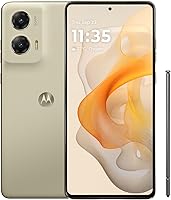
Moto G Stylus 2024: for handwritten notes
Choose the Moto G Stylus 2024 if you'll use the pen for shopping lists, sketches, or photo edits. Its 6.7 in pOLED display also suits someone who wants a large screen for reading and entertainment.
The 50MP camera includes optical image stabilization, a useful feature to prioritize if photos matter to you. This US model has 128GB of storage and 8GB of RAM.
Skip it if you won't use the stylus and mainly want calls, messages, and maps. Don't choose it for a second line until your carrier confirms the exact SIM arrangement it supports.
Moto G Power 2025: for large-screen use and wireless charging
Choose the Moto G Power 2025 if you want a 6.8 in screen and wireless charging. Its 120Hz display and stereo speakers suit someone who watches videos or reads on their phone often.
It has 8GB of physical RAM, with RAM Boost using storage as extra virtual memory. That distinction matters: the higher combined figure isn't all physical RAM.
A microSD card can add up to 1TB for supported files, but some protected content can't move to it. Skip this model if a large phone feels awkward or wireless charging adds little to your routine.
Moto G 2025: for everyday calls, messages, and apps
Choose the Moto G 2025 for everyday communication with 5G support and 128GB of storage. Motorola states compatibility with major US carriers, though you should still confirm the exact device with your provider.
Its 4GB of physical RAM makes it a less suitable choice for someone who frequently switches among many demanding apps. RAM Boost uses internal storage and shouldn't be treated as a replacement for more physical memory.
The 120Hz refresh rate doesn't mean sharper text: this model's LCD resolution is 1604 x 720. Skip it if display detail or heavy multitasking is a priority.
Moto G Play 2024: for a basic LTE phone
Choose the Moto G Play 2024 for calls, messaging, and light app use when LTE meets your needs. It pairs a Snapdragon 680 processor and 4GB of RAM with a 6.5 in 90Hz HD+ display.
Its 64GB of built-in storage needs closer management if you keep lots of apps. A microSD card supports up to 1TB of extra storage for suitable files, but it doesn't increase RAM.
Skip it if you specifically want 5G or need more internal space for apps. A memory card won't solve every storage shortage because not all app data can move.
How do you transfer your files and secure the phone?
Use the transfer option during initial setup, then check your important files and accounts. Keep both phones charged and follow the cable or wireless connection prompts.
Sign in to the correct Google account before restoring a backup. Photos visible in a cloud app may still need an internet connection unless you've saved them on the device.
Check contacts, messages, banking apps, and password access separately. Move authentication apps using their own transfer steps, and confirm you can receive sign-in codes before erasing the old phone.
Set a screen lock, add a fingerprint if wanted, and install system and app updates. For a parent, adjust text size, ringtone volume, and emergency contacts, then put frequently used apps on the first home screen.
What should you check before leaving Wi-Fi?
Check outgoing and incoming calls, texts, and mobile data while Wi-Fi is off. Open a fresh web page so a previously loaded screen doesn't hide a connection problem.
Ask someone to call and text the number you're keeping. Also confirm voicemail access, since a working outgoing call doesn't prove every service is ready.
If calls work but data doesn't, check that mobile data is enabled and the correct line is selected. Ask the carrier about plan provisioning or APN settings rather than copying settings from an unrelated phone.
For no service, check airplane mode, restart, and try a location with better coverage. Contact the carrier before a factory reset, which erases local data and won't fix an inactive account.
How should you charge, maintain, and travel with the phone?
Use a compatible charger, keep backups current, and check roaming before traveling. Being unlocked doesn't change your plan's data allowance or international charges.
The Moto G Power 2025 and Moto G 2025 support up to 30W wired charging with a suitable Motorola TurboPower charger, sold separately. A higher-output charger won't raise that maximum, and charging slows as the battery fills.
Keep charging ports dry and avoid leaving a charging phone in direct sun. The Moto G 2025 and Moto G Play 2024 have water-repellent protection, but neither is designed for submersion.
For travel, confirm destination coverage, roaming costs, and support for any local SIM or travel eSIM. Download maps over Wi-Fi and keep access to your usual number if your accounts use it for verification.
Which setup and phone choice should you make?
The key to how to use an unlocked phone is matching the device to your carrier before moving service. Finish activation, check your number and data, and keep the old phone until your essential accounts work.
Choose the Stylus for pen use, the Power for wireless charging and its larger screen, the Moto G for everyday 5G use, or the Play for basic LTE needs. If the phone is for a parent, use our Android phone guide for seniors to match the setup to their habits.
For help with later carrier changes, keep our unlocked phone basics handy.
Frequently asked questions
Do you need a new SIM card for an unlocked phone?
You don't always need a new SIM card. Your current card may work if it fits and your carrier supports the new phone, but the carrier may require an account update or replacement SIM; confirm the steps before moving service, especially when changing between a physical SIM and eSIM.
Can you use an unlocked phone without a carrier?
Yes, you can use an unlocked phone on Wi-Fi without a cellular plan for browsing, email, and supported internet calling apps. Regular carrier calls, carrier texts, and mobile data generally need active service, so Wi-Fi alone won't replace a phone plan when you're away from a connection.
How do you transfer data to a new unlocked phone?
Use the transfer option during setup or restore a recent backup, keeping both phones charged and nearby. Check contacts, photos, messages, and important apps afterward, and move authentication apps using their own instructions before erasing the old phone; copying an app doesn't always copy its accounts or saved data.
Why does an unlocked phone have no service?
No service often points to an inactive line, a SIM problem, weak coverage, or a phone the carrier doesn't support. Restart the phone, check airplane mode and SIM settings, then ask the carrier to confirm activation and device compatibility before trying a factory reset that could erase your data.