What to Look For in an Android Phone for a Parent
The best Android phone for seniors is one your parent can see, hear and use comfortably. Check screen clarity, familiar controls, battery needs, carrier fit and the help they may need after setup.
On this page (8 sections)
- What makes the best Android phone for seniors?
- How large and clear should the screen be?
- Which controls and features should you check?
- How much battery life does a parent need?
- Does an unlocked phone work with your parent's carrier?
- Which Android phones fit different parent needs?
- What should you set up before giving the phone to a parent?
- How do you choose the best Android phone for seniors?
The best Android phone for seniors is the one your parent can read, hear and use comfortably. Start with screen clarity, straightforward controls and a battery that fits their routine, then check carrier compatibility and setup support.
A phone that feels simple to you may still have small text or confusing menus for someone else. If you can, let your parent try the screen, call controls and keyboard before choosing.
What makes the best Android phone for seniors?
The best fit depends on your parent's needs and habits, not age alone. A large display may help with reading and video calls, while a familiar brand or a stylus may feel more natural to them.
Start by asking what they want the phone to do. Calls, messages, photos, video chats, maps and saved contacts call for different features.
| Need | What to check |
|---|---|
| Easier reading | Display clarity, text size and brightness |
| Clear calls | Ring volume, call controls and speaker use |
| Less charging hassle | Battery claims and charging routine |
| Familiar controls | Brand experience, home screen and app layout |
| Carrier flexibility | Compatibility with their carrier and plan |
| Help after setup | Who can show them settings and troubleshoot |
The details that matter most are often the ones your parent will use every day. A bright display is useful only if the phone also feels comfortable to hold and easy to answer.
How large and clear should the screen be?
Choose a screen that your parent can read comfortably, while making sure the phone is still comfortable to hold. Screen size alone does not tell you whether text will be clear.
Try increasing the font size and display size in settings before you buy. A larger display can make video calls, photos and on-screen buttons easier to view, but it can also make one-handed use harder.
Brightness matters if your parent often uses a phone outdoors. Google says the Google Pixel 10a reaches 3,000-nit peak brightness; the Moto G Stylus 2024 has a 6.7-inch pOLED display, and the Galaxy A17 5G has a 6.7-inch Super AMOLED display.
If your parent has trouble seeing small icons, arrange the home screen around a few familiar apps. Put calls, messages and family contacts where they can find them without searching through folders.
Which controls and features should you check?
Look for controls your parent can learn and repeat, especially for answering calls, adjusting volume and reaching family. Familiarity often matters more than a long feature list.
Ask them to try these tasks on the phone:
- Answer and end a call.
- Increase ring and call volume.
- Open messages and reply.
- Find a saved contact.
- Return to the home screen.
- Start a video call, if they use one.
Android phones offer settings that can make text, icons and sound easier to adjust. Menu names differ across brands, so set up the phone together and keep key apps on the first home screen.
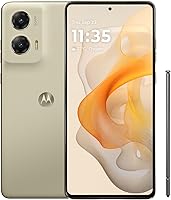
Consider how your parent likes to interact with a phone. The Moto G Stylus 2024 includes a built-in stylus for jotting notes, editing photos and using on-screen controls; that may suit someone who prefers a pen-like input.
How much battery life does a parent need?
Choose a battery and charging routine that match how your parent uses the phone. A long battery claim may be helpful, but real battery life varies with coverage, settings and use.
Think about whether your parent remembers to charge each night or prefers to plug in less often. A phone that supports wireless charging may make daily charging simpler if they already use a compatible wireless charging pad.
Google describes the Google Pixel 10a as offering 30+ hours from a full charge. Motorola says the Moto G Stylus 2024 can provide up to 30 hours for median users, while the Moto G Power 2025 has a 5,000 mAh battery and supports wireless charging.
A charging station in a visible, easy-to-reach spot can help make charging part of a routine. Check that the phone and charger are easy for your parent to connect and handle.
Does an unlocked phone work with your parent's carrier?
An unlocked phone can offer more carrier choice, but verify the exact model with your parent's carrier before buying. Network support, plan requirements and coverage can vary.
The Google Pixel 10a and Moto G Power 2025 work with major U.S. carriers, including Verizon, AT&T and T-Mobile. For any phone, confirm that the carrier supports its model and features, including 5G if your parent wants it.
If the phone is unlocked, you may also need to move a SIM card or activate an eSIM, depending on the model. Our guide to using an unlocked phone for the first time explains the setup steps, and how to check if a phone is unlocked can help if you are considering a phone they already own.
Which Android phones fit different parent needs?
These four phones suit different priorities, from a bright display to a built-in stylus. Choose based on the features your parent will use rather than the longest spec list.
Google Pixel 10a for seniors who want a bright Android phone
The Google Pixel 10a may suit a parent who wants a bright display and help screening spam calls. Google says its screen reaches 3,000-nit peak brightness and that the phone can screen spam calls.
It also offers fingerprint and facial recognition, wireless charging, and Google's battery claim of 30+ hours. The phone is unlocked and works with Google Fi, Verizon, T-Mobile, AT&T and other major carriers.
Consider it if screen visibility and call screening are priorities. Ask your parent to try the security and call settings so they know how to unlock the phone and handle calls.
For a broader comparison, see our best Android phones for seniors guide.
Moto G Stylus 2024 for notes and pen input
The Moto G Stylus 2024 may fit a parent who prefers writing notes or tapping with a stylus. Its built-in stylus supports jotting notes, editing photos, sketching and using on-screen controls.
Its 6.7-inch pOLED display may be worth considering if your parent wants a larger screen. Motorola says median users can get up to 30 hours of battery life, and the phone supports wireless charging.
Consider it if the stylus feels useful rather than like one more feature to learn. Ask your parent to try writing a short note and using the stylus to open an app.
Moto G Power 2025 for a larger display and wireless charging
The Moto G Power 2025 may suit a parent who wants a large screen and wireless charging. It has a 6.8-inch display, stereo speakers and a 5,000 mAh battery.
The phone is unlocked and works with major U.S. carriers, including Verizon, AT&T and T-Mobile. Its 50MP camera system includes optical image stabilization, and it supports expandable storage with a microSD card.
Consider it if your parent likes a larger phone and wireless charging. Check how it feels in their hand before deciding, since a large display can make one-handed use harder.
Read our Moto G Power guide for more on its features.
Galaxy A17 5G for Samsung features and long-term updates
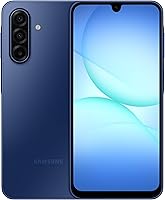
The Galaxy A17 5G may suit a parent who already knows Samsung phones or wants a large AMOLED display. Samsung promises 6 OS upgrades and 6 years of security updates from its global manufacture date.
It has face recognition, expandable storage and an IP54 rating for limited dust and fresh-water splash resistance. That protection does not make it suitable for beach or pool use.
The 25W Super Fast Charger is sold separately. Check whether your parent already has a compatible Samsung-approved charger and cable.
Consider it if Samsung's menus and apps feel familiar to your parent. For a closer look, see whether the Samsung Galaxy A17 is a good phone.
What should you set up before giving the phone to a parent?
Set up the phone with your parent and practice the tasks they will use most. Their comfort with calls, contacts and charging is more useful than a phone full of apps they never open.
- Set text size, display size and brightness together.
- Add important contacts and place them on the home screen.
- Adjust ring and call volume, then make a test call.
- Show how to answer, end and return calls.
- Connect the phone to Wi-Fi and update its software.
- Choose a charging spot they can reach easily.
Ask before changing how their home screen is arranged or adding accounts. Let them make decisions about passwords, notifications and privacy settings.
Keep a short written note of any steps they want to remember. A family member can also agree on who will help if an app, password or setting becomes confusing.
How do you choose the best Android phone for seniors?
Choose the best Android phone for seniors by matching the phone to your parent's daily habits. Prioritize a clear screen and comfortable controls, then compare charging, carrier fit and the help available after setup.
Pick the Google Pixel 10a if display brightness and spam-call screening stand out. Consider the Moto G Stylus 2024 for pen input, the Moto G Power 2025 for its larger display and wireless charging, or the Galaxy A17 5G if Samsung feels familiar.
Before buying, have your parent try the phone and confirm it works with their carrier. Then follow our guide to using an unlocked phone for the first time and set it up together, with key apps and contacts close at hand.
Frequently asked questions
What should I look for in an Android phone for a senior?
Start with a screen your parent can read, controls they can learn, and a battery that suits their routine. Check whether the phone works with their carrier, whether they want a simpler home screen, and whether a family member can help with setup and updates.
Is a bigger screen better for seniors?
A larger screen can make text and video calls easier to see, but the phone may also be harder to hold or fit in a pocket. Compare the actual display in person if possible, and try the text-size and display settings before deciding.
Should I buy an unlocked Android phone for my parent?
An unlocked phone offers carrier choice, but confirm compatibility with your parent's exact carrier and plan before buying. Check the model you plan to buy, then use our guide to unlocked Android phones to compare options that suit their needs.
Which Android phone is easiest for an older adult?
There is no single easiest phone for every older adult. A familiar brand, clear screen, simple home screen and reliable help with setup may matter more than advanced features, so ask your parent to try the controls they use most.
Can I make an Android phone simpler to use?
Yes, you can usually increase text size, move key apps to the home screen, raise ring volume and add important contacts. Menu names vary by phone, so set it up together and write down any steps your parent may want to repeat.