How to Use an Unlocked Phone on T-Mobile
To use an unlocked phone on T-Mobile, check the exact device’s compatibility, then activate your line with a T-Mobile SIM or eSIM. Restart the phone and check calls, texts, and mobile data with Wi-Fi off.
On this page (8 sections)
- How do you check if an unlocked phone works on T-Mobile?
- What do you need before you activate it?
- How do you set up a T-Mobile SIM or eSIM?
- How do you activate and check the phone?
- Which unlocked phone should you choose for T-Mobile?
- What should you do if the phone has no service?
- Which everyday habits prevent setup problems?
- How do you use an unlocked phone on T-Mobile successfully?
To use an unlocked phone on T-Mobile, confirm the exact device is compatible, activate a SIM or eSIM, and check service with Wi-Fi off. An unlocked phone can accept another carrier’s service, but it still needs the right network support.
Start with the phone you already own if it meets your needs. You don’t need a replacement just to move to T-Mobile, and checking compatibility first can prevent an unnecessary purchase.
How do you check if an unlocked phone works on T-Mobile?
Check the exact device’s IMEI with T-Mobile before moving your line. The model name alone isn’t enough because regional versions can differ.
Find the model number and IMEI in the phone’s settings, usually under About phone. Keep the IMEI private and enter it only through the carrier’s official tools or support channels.
Use T-Mobile’s bring-your-own-phone compatibility check. Confirm support for calls, texts, mobile data, and any extras you depend on, such as Wi-Fi calling or hotspot use.
A compatible phone also needs coverage where you use it. Check your home, work, and regular travel areas rather than judging service by a network icon at one location.
Our guide to what an unlocked phone means explains carrier restrictions versus network compatibility. If the phone’s status is uncertain, follow how to check if your phone is unlocked before arranging service.
What do you need before you activate it?
You need a compatible phone, a T-Mobile line ready for activation, and a supported SIM method. Prepare account and transfer details before taking service off your old device.
Have these ready:
- The phone’s exact model number and IMEI.
- Your T-Mobile account access and any required verification details.
- A physical SIM or instructions for activating an eSIM.
- Wi-Fi access and enough battery power to finish setup.
- A backup of contacts, photos, and other files you need.
If you’re bringing a number from another carrier, obtain the account number and any required transfer PIN. Keep the old service active until the transfer finishes; canceling it early can disrupt the move.
Check access to banking apps and accounts that send sign-in codes to your phone. Keep your old device available until you’ve moved those accounts and confirmed that messages arrive on the new one.
How do you set up a T-Mobile SIM or eSIM?
Use a physical SIM that fits the phone or an eSIM supported by the exact device and line. Don’t assume every unlocked phone offers both choices.
For a physical SIM, follow the phone’s power-off instructions and open the correct tray with the eject tool. Match the card’s cut corner to the tray, and never force a card or use a poorly fitting adapter.
For eSIM, connect to Wi-Fi and follow the activation instructions from T-Mobile. A phone-to-phone data transfer doesn’t necessarily move your cellular service, so complete the carrier’s setup step too.
Read whether unlocked phones use a SIM card or eSIM if you’re unsure which method applies. Keep the old eSIM in place until the carrier’s instructions call for removal and the replacement connection works.
Can you move your current SIM to an unlocked phone on T-Mobile?
An active physical SIM may work in your replacement phone when the device is compatible and the card fits. Confirm with T-Mobile if you’re changing SIM types, using an older card, or having activation trouble.
On a dual-SIM phone, select the intended line for calls, messages, and mobile data. Leaving another line as the data default can make a working T-Mobile connection appear unavailable.
How do you activate and check the phone?
Once activation finishes, restart the phone and check each service separately. A signal icon or one successful call doesn’t confirm that everything is ready.
- Check that the phone recognizes the physical SIM or enabled eSIM.
- Make an outgoing call and ask someone to call you back.
- Send and receive a regular text message.
- Turn off Wi-Fi and load a webpage through mobile data.
- Try a picture message and check voicemail.
- Check Wi-Fi calling or hotspot use if you need those features and your plan supports them.
Use a regular text as well as any internet-based messaging app. Messages sent over Wi-Fi can work while cellular service is still incomplete.
Restore your apps and files after the connection works. Our first-time unlocked phone setup guide covers the wider setup process, including the steps beyond carrier activation.
Which unlocked phone should you choose for T-Mobile?
Choose a replacement for how you use your phone, then confirm compatibility before moving your line. These 3 models suit different buyers, so start with the feature you’ll use most.
For a wider view of storage, regional versions, and carrier checks, see our unlocked Android phone buying guide.
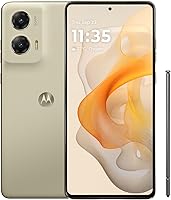
Moto G Stylus 2024: for notes and pen input
Choose the Moto G Stylus 2024 if you regularly jot notes, mark up photos, or sketch ideas. Its built-in stylus gives you a clear reason to choose it over a phone you’ll use only with your fingers.
The 6.7-inch pOLED display and stereo sound suit reading and video. Its 50MP camera includes optical image stabilization, a useful feature to prioritize if taking photos matters alongside note-taking.
This US model has 8GB of RAM and 128GB of storage. Storage used by the system and RAM Boost reduces the space available for your own files.
Skip it if you rarely use a pen or prefer a smaller phone. Before buying, consider whether a large screen will fit your pocket and feel comfortable during one-handed use.
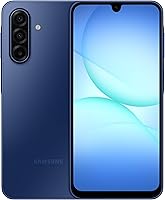
Galaxy A17 5G: for keeping a phone longer
Choose the Galaxy A17 5G if a stated software support period matters more than pen input. Samsung promises 6 OS upgrades and 6 years of security updates from global manufacture, so that period doesn’t begin on your purchase date.
Its 6.7-inch FHD+ Super AMOLED display suits reading, recipes, and video calls. The phone supports microSD expansion up to 2TB, useful for keeping a large photo or video library without filling internal storage.
The IP54 protection covers limited dust and fresh-water splash exposure. Keep it away from pools and don’t treat that protection as permission to submerge it.
Skip it if you want a built-in stylus or a compact device. Also budget for a compatible charger and a memory card if needed; Samsung’s 25W charger and the microSD card are sold separately.
Moto G 2025: for everyday calls and scrolling
Choose the Moto G 2025 for routine calls, messaging, maps, and scrolling when you don’t need a stylus. Motorola names T-Mobile among its compatible US carriers, though you should still check the exact device’s IMEI.
Its 6.7-inch LCD supports refresh rates up to 120Hz, with the rate varying by content and settings. The 1604 x 720 resolution makes it a less suitable choice if crisp small text is your main screen priority.
It has 4GB of physical RAM and 128GB of storage, with microSD expansion up to 1TB. RAM Boost uses storage as virtual memory, so don’t confuse the expanded figure with built-in RAM when comparing phones.
Skip it if you often switch among demanding apps or want the sharper display of the Galaxy A17. Its water-repellent design also doesn’t make it waterproof.
What should you do if the phone has no service?
Start with activation status, the selected SIM, and basic network settings. Note exactly what fails before changing settings so you can give support a useful description.
- Nothing connects: Turn airplane mode off, restart, and confirm the line is active.
- Calls work but data fails: Disable Wi-Fi, enable mobile data, and check the default data SIM.
- Data works but calls fail: Ask T-Mobile to check voice service support and account setup.
- Only incoming service fails: Ask whether the number transfer has finished.
- Service fails in one place: Check coverage and whether other nearby T-Mobile phones also lose service.
Install available software updates over Wi-Fi. If T-Mobile directs you to change APN settings, use its instructions for your device rather than copying settings from an unrelated phone.
Avoid deleting the eSIM or performing a factory reset as an early troubleshooting step. Either can add setup work without fixing an account or coverage problem.
Which everyday habits prevent setup problems?
Keep software current, account access available, and charging equipment in good condition. These habits make future device changes easier and help protect your files.
Use a screen lock, enable backups, and store account recovery codes somewhere other than the phone itself. Leave enough free storage for app and system updates instead of filling every available gigabyte.
Use a compatible charger and an undamaged cable, and avoid charging under bedding or in direct sun. Keep SIM trays clean and dry, and don’t mistake splash protection for waterproofing.
How do you use an unlocked phone on T-Mobile successfully?
Keep your current phone if it meets your needs and passes T-Mobile’s compatibility check. If you need a replacement, choose the Stylus for pen input, the A17 for Samsung’s support promise, or the Moto G for routine use.
The final step in how to use an unlocked phone on T-Mobile is confirming that incoming calls, texts, and cellular data all work before putting the old phone away.
If you’re still weighing carrier restrictions, read unlocked vs. locked phones. For another carrier comparison, see whether an unlocked phone works with Verizon.
Frequently asked questions
Will any unlocked phone work on T-Mobile?
No, an unlocked phone still needs compatible network support and must be eligible for activation. Check the exact device’s IMEI with T-Mobile before moving your line, since phones with the same name can have different regional versions; also confirm support for features you need, such as Wi-Fi calling.
Do I need a new SIM card for an unlocked phone?
Not always: an active T-Mobile physical SIM may work in a compatible replacement phone if it fits and T-Mobile confirms your line can use it. For eSIM, follow the carrier’s transfer or activation steps; don’t delete the old eSIM until the new phone has working service.
How do I activate an unlocked phone on T-Mobile?
Confirm device compatibility and prepare your T-Mobile line, then insert an active physical SIM or complete the carrier’s eSIM setup. Restart the phone and check outgoing and incoming calls, texts, and mobile data; keep Wi-Fi off during the data check so it doesn’t hide a cellular connection problem.
Why does my unlocked phone have no service on T-Mobile?
An inactive line, incomplete number transfer, SIM problem, incompatible device, or coverage gap can cause no service. Check airplane mode, restart the phone, and confirm that the correct SIM is enabled; if service stays unavailable, give T-Mobile the exact model and IMEI so support can check activation and compatibility.